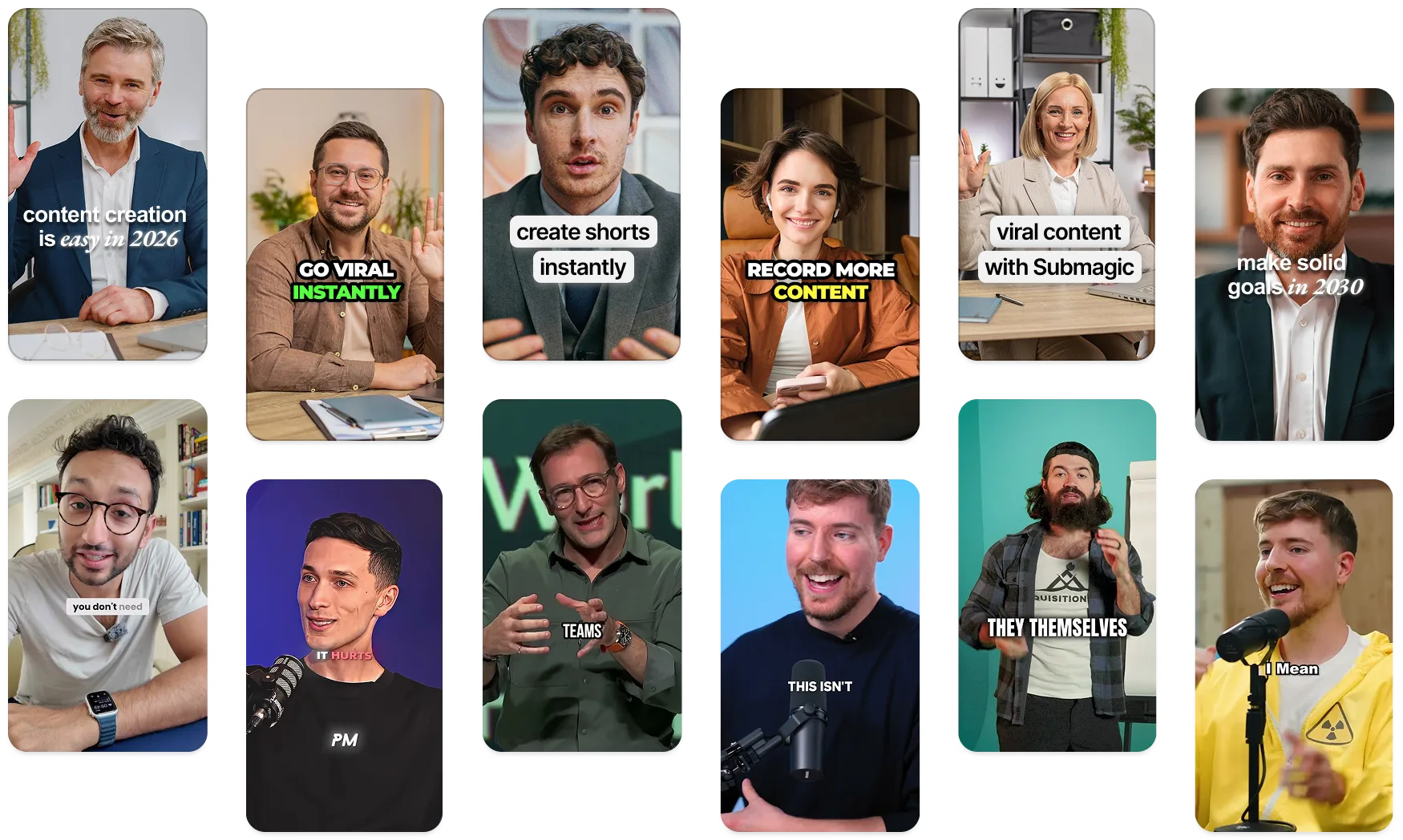
AI video editor for coaches

Turn talking-head advice, client calls and webinars into polished short-form videos with captions, auto-edit and clip-ready highlights. No editor needed.

Clip batch from one recording

Teaching clip Build authority
Objection-handling clipPre-sell the offer
Client testimonialEarn trust
Authority storyStand out
Bag kulisserneFeel relatable
Offer CTADrive enquiries

Adds captions · Trims dead air · Pulls out highlights · Formats vertical

Sådan fungerer det

From raw coaching footage to publish-ready videos

Bring in a talk, a client call or a webinar; ship captioned clips that are easy to follow.

Upload your recording

Drop in a webinar, a client call or a talking-head advice video.

Add captions and a hook

Auto Captions styles the subtitles and a hook title frames the advice up front.

Polish the edit

Magic B-roll, auto-zoom and silence trimming tighten the clip automatically.

Publish consistently

Export vertical for LinkedIn, Reels and Shorts, and keep posting between client work.

Hvorfor bruge det?

Coaching content is valuable, but hard to turn into clips

You already record the advice. Submagic turns those talks, calls and webinars into short-form clips, without manual editing.

No time to learn a video editor

Auto-Edit adds captions, b-roll and auto-zoom, and trims the dead air in one pass.

A polished coaching clip, ready to post.

Your best advice gets scrolled past without sound

Auto Captions styles the subtitles and adds a hook title up top.

Advice people can follow with the sound off.

Posting slips when client work piles up

Magic Clips pulls several strong moments from one talk or webinar.

A batch of clips from one upload, without filming more.

Værktøjskasse

Continue your coaching video workflow

Pick a feature or a free tool to take the next step.

OFTE STILLEDE SPØRGSMÅL

Questions about making coaching videos

Do I need to hire a video editor for my coaching content?

No. Submagic runs Auto-Edit on your talk, client call or webinar, adding captions, b-roll and auto-zoom and trimming the dead air automatically. You get a short coaching clip ready to post, with no editor to hire and no timeline to learn.

Is there a free way to edit coaching videos?

Yes. You can try Submagic free before you subscribe, so you can upload an advice recording, run Auto-Edit and add captions before choosing a plan. It is a quick way to see what your talk looks like once it is captioned and cut.

What is the best video editor for coaches?

One built for non-editors. Submagic is made for coaches who would rather record than edit: you upload a talk and it captions, polishes and formats the clip automatically, instead of asking you to learn a desktop editor.

How do I turn a long webinar or talk into short clips?

Upload the recording and let Submagic do the work. It finds the strong moments, Auto Captions styles the subtitles, and Auto-Edit trims the dead air, so a long webinar becomes short clips sized for LinkedIn, Reels and Shorts.

How do I add captions to coaching clips for LinkedIn?

Submagic's Auto Captions transcribes your clip and styles the subtitles automatically. Captions matter on LinkedIn, where advice clips usually play on silent autoplay, so people can still follow your advice with the sound off.

How long should a coaching video be?

Most advice clips work best between 30 and 60 seconds: one idea, captioned, with a hook in the first second. Auto-Edit trims the dead air so the clip stays tight and watchable.

Kom godt i gang

Kom i gang med at lave korte videoer, der får flere visninger – hurtigere.

Kom i gang nu
Prøv gratis

10 gange hurtigere redigeringshastighed

+40 % stigning i det gennemsnitlige antal visninger

80 % reduktion i redigeringsomkostningerne