Two clips, side by side
Pick your two videos and the tool plays them together, each fit into its own half of the frame. The output is twice as wide, so both clips show on a split screen at full height.


Place two clips on a split screen to compare them at once, or sweep a wipe between a before and an after. It all happens in your browser, so nothing is uploaded and there is no watermark.
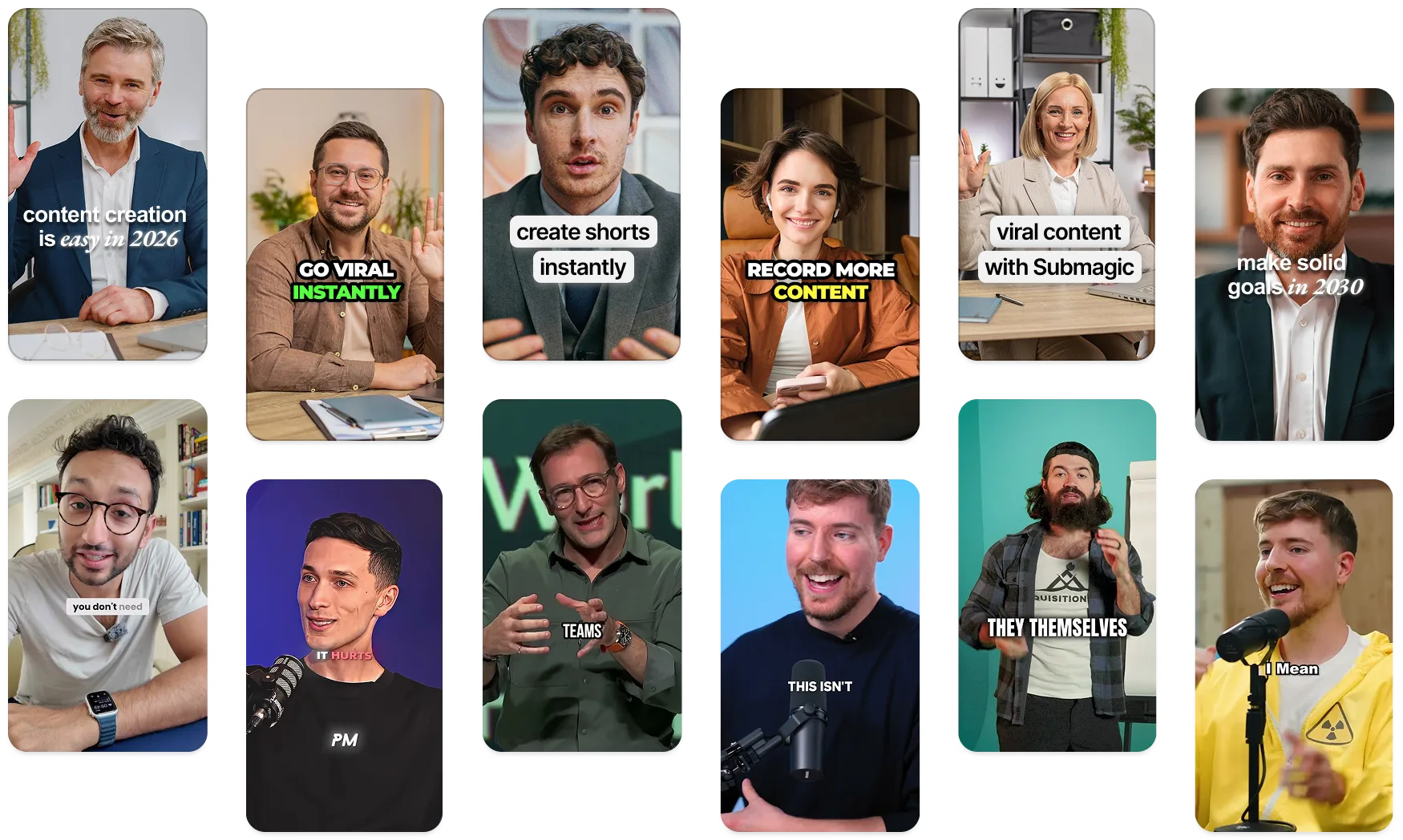
Tieto spoločnosti dôverujú a obľubujú titulky generované umelou inteligenciou od Submagic.


Open the tool, load the first video, then add the second. Choose the Side by side layout and save, and the two clips play together, each in its own half of the frame. Split screen is the same thing: two videos shown at once. It all happens in your browser, so there is no upload step and no account to create.
Yes. The tool is free to use, with no sign-up, no trial, and no watermark on the result.
No. The comparison is built on your device with WebCodecs, so your clips never leave your browser and nothing is stored on a server. Because nothing is uploaded there is no server size limit; very large files are bounded only by your device memory.
Yes. Put the two clips side by side and they play at the same time, which is what you want for a reaction-style layout or a before-and-after comparison. The first video sits on the left and its sound carries the result.
The two clips start together and the comparison ends when the shorter one ends, so the longer clip is cut off at that point. If you want them to finish together, trim them to a similar length first with the Trim video tool, then bring them back here.
The audio comes from the first video only. The second clip's sound is left out, so the comparison has one clean track instead of two playing over each other. If you want the other clip's audio, load that one as the first video.
Side by side places each clip in its own half at full height, so the frame comes out twice as wide as one clip, with each clip fit into its half and centered. The wipe option is the other layout: the first clip fills the frame and a divider sweeps across to reveal the second over it, keeping the first clip's size instead of doubling the width.
Yes. The tool runs in your phone browser, so it works on iPhone and Android with no app to install. Load the first video, add the second, pick a layout, and the comparison saves to your downloads or files.
You choose. The tool can save the result as WebM or MP4, with WebM selected by default. Both are real video files you can play and share, and WebM is usually the smaller of the two.
Začnite



Submagic je najlepší nástroj s umelou inteligenciou na vytváranie pútavých videí short-form v priebehu niekoľkých sekúnd pre tímy a firmy.