AI video editor for educators

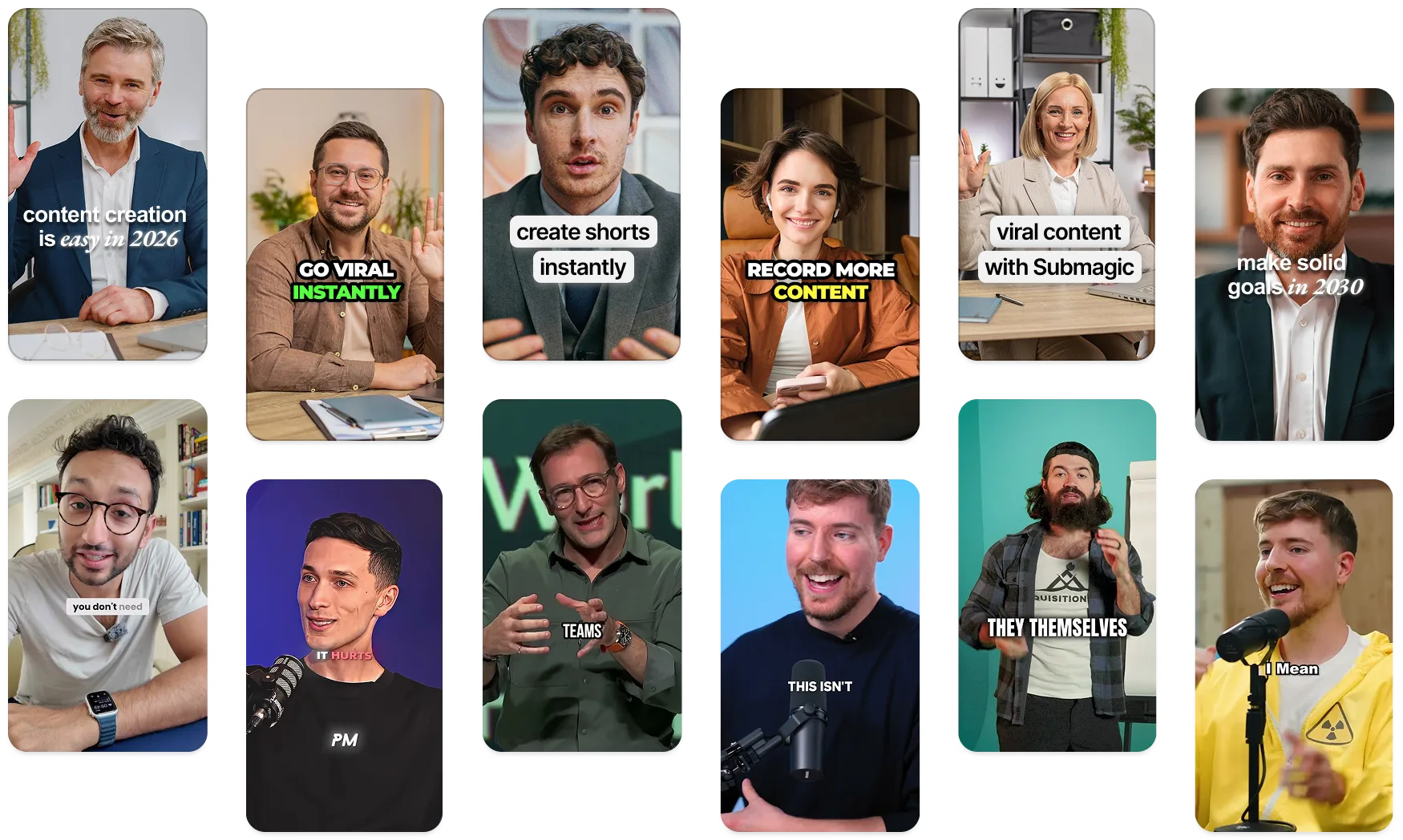
Turn lessons, course recordings and webinars into clear, captioned short-form videos. Submagic auto-edits, adds captions and pulls short lesson previews from long recordings. No editor needed.

Videos from one lesson

Course promo Win new students
Lesson previewGet more reach
Concept explainerMake it click
Student successBuild credibility
Tool tutorialHelp people start

Adds captions · Cleans the audio · Trims dead air · Formats vertical

Come funziona

From a recorded lesson to publish-ready videos

Bring in a lesson, a course module or a webinar; ship captioned videos your learners can follow.

Upload your lesson

Drop in a recorded lesson, a course module or a training webinar.

Caption the lesson clearly

Auto Captions transcribes and styles every line, and a hook title opens the lesson.

Clean up and polish

Clean Audio levels the sound, then Magic B-roll and auto-zoom add visual interest.

Publish or reuse

Export vertical for YouTube, Reels and Shorts, or a full lesson for your course platform.

Perché utilizzarlo

Your best lessons are buried in long recordings

You already record the lessons. Submagic turns those long recordings into captioned, easy-to-follow videos, without learning a video editor.

Complex topics lose people without on-screen text

Auto Captions transcribes every line and styles the subtitles.

Lessons that are easy to follow, with sound on or off.

Editing a long lesson by hand takes longer than recording it

Auto-Edit cleans the audio, trims the dead air and adds b-roll in one pass.

A polished lesson video, without opening a timeline.

One long lesson is hard to promote on social

Magic Clips pulls short previews from the full recording.

Lesson previews and promos from one upload, without filming more.

Kit di strumenti

Continue your educational video workflow

Pick a feature or a free tool to plan your next lesson.

FAQ

Questions about making educational videos

Do I need video editing skills to make educational videos?

No. Submagic runs Auto-Edit on your lesson, course module or webinar, adding captions, cleaning the audio and trimming the dead air automatically. You get a clear, captioned video ready to publish, with no editor to learn and no one to hire.

Is there a free way to edit educational videos?

Yes. You can try Submagic free before you subscribe, so you can upload a lesson, run Auto-Edit and add captions before choosing a plan. It is a quick way to see how your lesson looks once it is captioned and cut.

What is the best video editor for online courses?

One made for educators who would rather teach than edit. Submagic captions, cleans up and formats your lesson automatically, so you can turn a recording into a watchable video without learning a timeline editor.

How do I turn a long lesson or webinar into short clips?

Upload the full recording and let Submagic pull the previews. It finds the strong segments and turns them into short vertical clips you can caption and post, so a long lesson becomes lesson previews and course promos without filming anything new.

How do I add captions to my course videos?

Submagic's Auto Captions transcribes your video and styles the subtitles automatically. Captions matter for teaching: they keep complex topics easy to follow, help learners who are not native speakers, and let people study from your video with the sound off.

How long should an educational video be?

It depends on the goal. Keep social previews short, around 30 to 90 seconds on one idea, and keep full lessons focused so attention holds. Auto-Edit trims the dead air either way, so the video stays concise and easy to watch.

Iniziare

Inizia a creare cortometraggi che ottengano più visualizzazioni, in meno tempo.

Inizia subito
Prova gratis

Velocità di editing 10 volte superiore

Aumento medio delle visualizzazioni del +40%

Riduzione dell'80% dei costi di editing